Switching from DealerClick: How to Move Your Inventory, Customers and Deals Without Losing a Week
Practical migration playbook for switching from DealerClick: what to export, contract terms to check, what moves by CSV, and your first week on the new…
Part of the Choosing dealer software guide: The best DMS for independent used-car dealers in 2026 — an honest list from a dealer
Why dealers leave DealerClick
Dealers switch DMS platforms for pricing pressure when the contract renews, support delays during busy periods, or the discovery that a simpler tool handles what you actually need. DealerClick markets heavily to BHPH operators, so if you've pivoted away from paper carry or if your lot runs mostly cash-and-instant-approval deals, you may be paying for loan tracking and compliance reporting you don't use anymore.
A note on contract terms: Before you export anything, check your signed agreement and get written confirmation from DealerClick about your notice period, whether there are fees for data exports at cancellation, and how long you'll have read-only access to historical records after your subscription ends.
14-day free trial, then $29/mo · Cancel anytime
What you can export from DealerClick
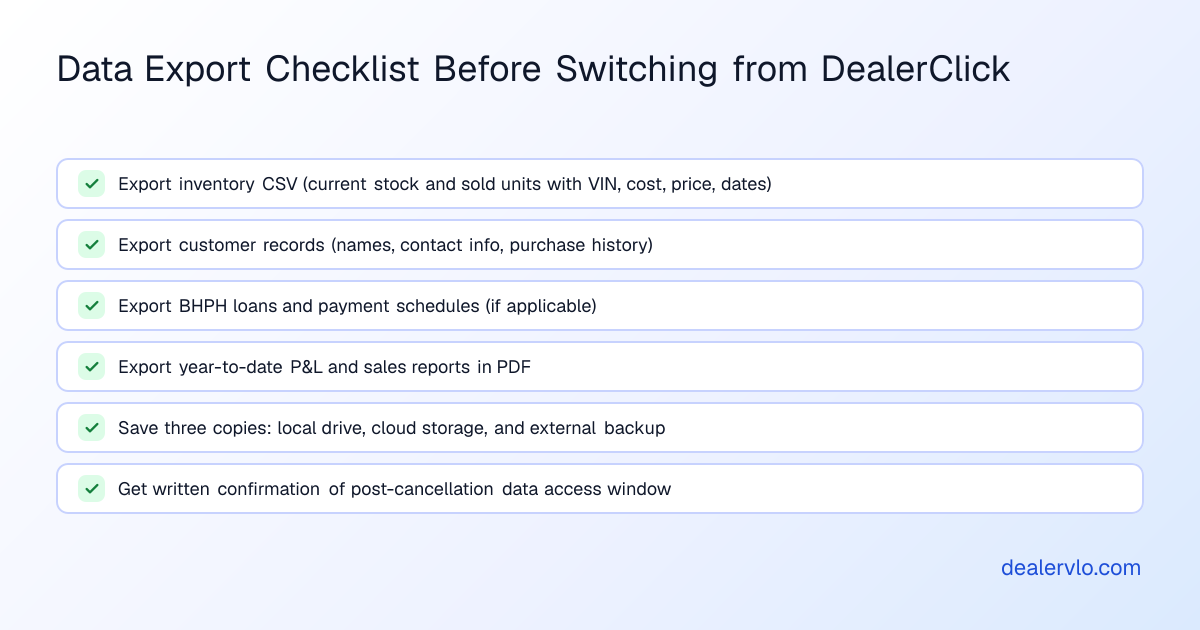
DealerClick's migration documentation describes what the system exports: customer records including contact information, credit applications and purchase history; vehicle inventory covering both current stock and sold units with their full history; financial transactions; active BHPH loans and payment schedules; and vendor, lender and user account information.
What format to request:
Ask DealerClick support to export your data in CSV format. Request separate CSV files for inventory, customers, BHPH loans (if applicable), and financial transactions.
What moves into DealerVLO by CSV import
DealerVLO accepts CSV imports for inventory and customer contacts — up to 500 rows per file. The import recognizes common column names from other systems automatically, skips duplicate VINs in inventory imports, and skips duplicate email addresses in customer imports.
What does NOT import:
- Past deals and their documents
- BHPH loan balances and payment history
- Financial transactions or expense history
- Vendor or lender records
If you carry paper on your own customers, you'll need to keep read-only access to DealerClick (or archived exports) for historical loan data and payment records. Before you cancel DealerClick, export everything and save multiple copies.
14-day free trial, then $29/mo · Cancel anytime
Your contract, notice period, and timing
DealerClick's homepage says the company doesn't lock dealers into long-term contracts, but that's a marketing statement — it doesn't tell you your specific notice period. Your signed agreement controls, so dig it out and read the cancellation section. Look for:
- Written notice period: whether you need to give 30, 60, or 90 days' written notice, and to whom.
- Prorated refunds: whether you get money back if you cancel partway through a billing period.
- Data-retention window: how long you can access historical data after cancellation, and whether there's a fee to keep read-only access or to export data.
If your agreement is silent on any of those points, email DealerClick and ask for written confirmation.
Timing the switch:
The cleanest cutover is at the end of a billing cycle. If you're required to give 60 days' notice and you want to be off DealerClick by the first of next month, send your written cancellation notice now and plan to run both systems in parallel during that notice period.
Running both systems for a short overlap
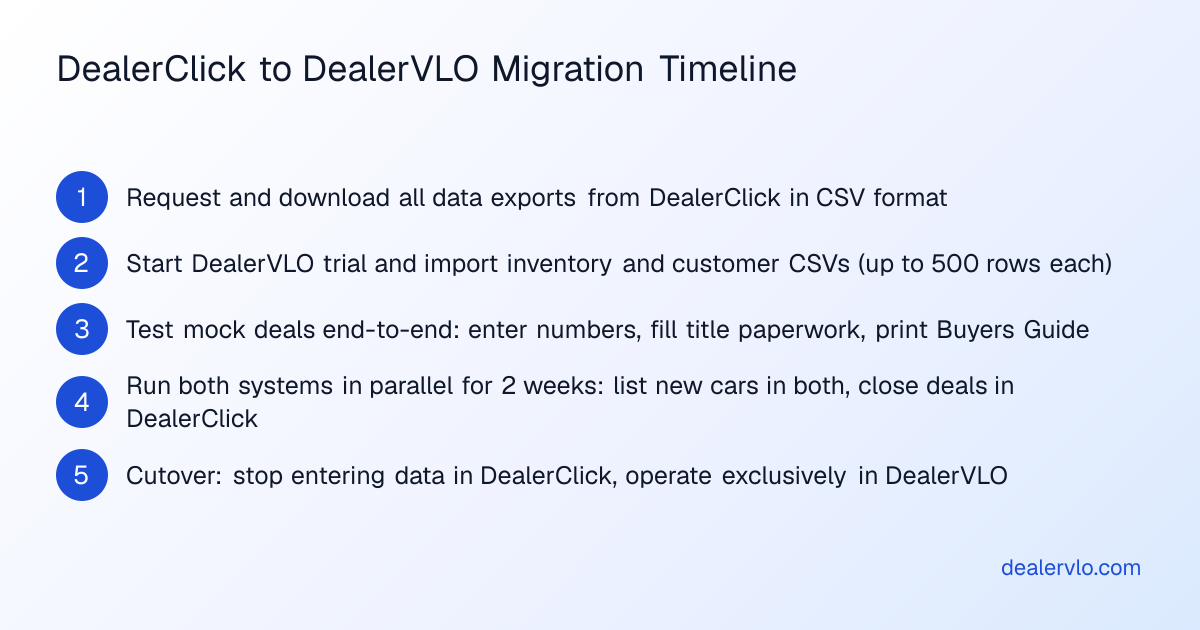
The safest way to switch is to bring the new system up before you take the old one down. Start your DealerVLO trial, import your inventory and customer CSVs, and test the deal workflow on a couple of sold cars or pending deals.
During the overlap, list new acquisitions in both systems until cutover day, enter new leads into DealerVLO, and close deals in DealerClick if they started there — don't try to move a deal in progress between systems.
You're paying for both systems during the overlap, but a two-week or one-month parallel run costs a lot less than losing a deal because a form didn't populate correctly.
Importing your data into DealerVLO
Inventory:
In DealerVLO, go to Inventory → Import. Upload your inventory CSV (up to 500 rows). The system recognizes common column headers — VIN, Year, Make, Model, Mileage, Price, Cost, Stock Number — and maps them automatically. Duplicate VINs are skipped.
After import, each car decodes by VIN — DealerVLO fills year, make, model, trim, body style, engine, transmission, drivetrain, fuel type, and exterior color from the VIN.
Customers:
Go to Settings → Import data and upload your customer CSV. Duplicate email addresses are skipped.
BHPH loans and past deals:
These don't import. Keep your DealerClick exports or archive access for historical loan records, payment schedules, and deal paperwork. If you write a new BHPH contract after the switchover, create it in DealerVLO — the deal jacket calculates front- and back-end gross, and the payment tracking view shows balance, due dates, and payment history going forward.
Setting up listings, your website, and lead flow
DealerVLO includes a dealer website, and your inventory posts to it automatically. Each car page carries structured data that search engines and AI crawlers read.
If you were sending inventory feeds to CarGurus, Cars.com, or Autotrader through DealerClick, you can set those up again in DealerVLO: under Settings → Inventory syndication feeds, enter your Dealer ID for each site and opt in. DealerVLO sends the three sites one combined feed once a day, so there's no feed URL to manage. When a lead comes in through your DealerVLO website, the system emails your dealership address and sends the buyer an automatic confirmation.
14-day free trial, then $29/mo · Cancel anytime
Your cutover checklist
Pick a cutover date — ideally a Sunday night or a slow Monday morning, when you're not in the middle of closing deals. A day or two before:
- Export final snapshots from DealerClick: inventory, customers, loans, financial transactions, and a year-to-date P&L. Save three copies.
- Reconcile your inventory: walk the lot with a printed list and confirm every car in DealerClick is either on the ground or marked sold.
- Import inventory and customers into DealerVLO and verify counts match.
- Test a mock deal in DealerVLO: pick a sold car from last month, re-enter the numbers, auto-fill your state's title paperwork, print the Buyers Guide.
- Update your listing feeds: in DealerVLO, enter your Dealer ID for each listing site and opt in under Settings → Inventory syndication feeds, then ask each site to stop the DealerClick feed.
- Brief your team (if you have one): show them where inventory lives, where leads land, and how to start a deal jacket.
On cutover day, stop entering new data into DealerClick. List new acquisitions in DealerVLO, answer leads from the DealerVLO inbox, and close deals in the new system. If a deal started in DealerClick before cutover, finish it there.
The first week:
Keep your DealerClick exports handy for the first month, in case you need to look up an old deal or a payment history that didn't move over.
What the move costs in time
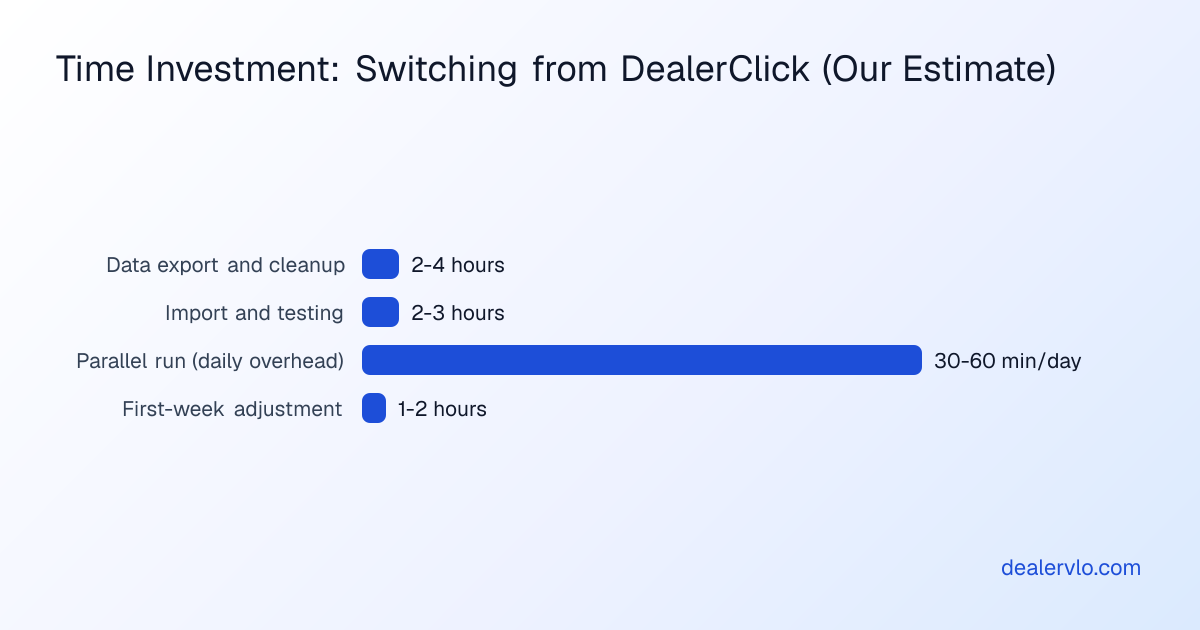
Switching DMS platforms takes real time, but it's not a month-long ordeal if you're organized. These are our rough estimates, not measured averages.
Data export and cleanup: 2–4 hours to request exports from DealerClick, download them, open each CSV, and clean up any formatting issues.
Import and testing: 2–3 hours to upload inventory and customers into DealerVLO, verify counts, decode VINs, and test a mock deal end to end.
Overlap period: plan to run both systems for at least two weeks. You're mostly duplicating data entry during this window, so budget an extra 30–60 minutes a day.
First-week adjustment: the week after cutover, budget an extra hour or two for learning the new layout.
Total invested time, by our estimate: roughly 10–15 hours spread over three weeks, assuming you're a solo operator or a small team.
When DealerClick is the better fit
DealerClick markets heavily to BHPH dealers and offers deep loan-tracking, payment-scheduling, and compliance-reporting features. If you write a high volume of in-house paper and your state requires detailed BHPH compliance packets — payment histories, notice logs, repossession records — and those reports are already built into your DealerClick workflow, the cost of re-creating that reporting elsewhere may outweigh the savings from switching.
If setup and support have been smooth for you, and the pricing still fits your budget, there's no reason to switch just because someone else had a bad experience.
What to do with your old DealerClick data
Even after you've moved to a new system, keep your DealerClick exports.
Store three copies: one on your office computer, one in a cloud service like Google Drive or Dropbox, and one on an external hard drive you keep somewhere other than your office. If your DealerClick agreement included post-cancellation read-only access for a limited window, set a calendar reminder a week before that window closes and export anything you haven't grabbed yet.
Pricing: what to expect
DealerVLO is $29 a month, flat. Unlimited users, unlimited deals, all features included. No per-deal fees, no per-form fees, no add-on charges. You get a 14-day free trial, and you can cancel any time.
Frequently asked questions
Can I export my inventory and customer data from DealerClick before I cancel?
Ask DealerClick support to export your data in CSV format before you cancel, and get a written list of what the export includes. Request customer records, vehicle inventory (current and sold units), financial transactions, active BHPH loans and payment schedules, and vendor and user account information.
What data from DealerClick can I import into DealerVLO?
DealerVLO accepts CSV imports for inventory and customer contacts — up to 500 rows per file. The import skips duplicate VINs and duplicate email addresses. Past deals, deal documents, BHPH loan balances and payment history, financial transactions, and vendor records do not import.
Do I need to give DealerClick written notice before I cancel?
DealerClick's website says there are no long-term contracts, but your specific agreement may require written notice — commonly 30, 60, or 90 days. Check your signed contract for the cancellation section, and get written confirmation from DealerClick about your notice period and data-access window.
How long does it take to switch from DealerClick to DealerVLO?
By our rough estimate, 10–15 hours spread over two to three weeks: exporting and cleaning up your data, importing and testing, and running both systems in parallel for about two weeks.
How much does DealerClick cost compared to DealerVLO?
DealerVLO is $29 a month flat — unlimited users, all features included, and no per-deal or per-form fees. For DealerClick, ask for a written quote for your setup, including how it bills (per user, per rooftop, or flat) and what add-ons cost.
Will I lose my BHPH loan history when I switch from DealerClick?
DealerVLO does not import past BHPH loan balances or payment history. You'll need to keep your DealerClick exports or read-only archive access for historical loan records. DealerVLO does offer BHPH payment tracking for new loans you write after the switchover.
Bottom line
Switching from DealerClick to a simpler DMS takes some work up front — exporting data, importing CSVs, testing the new workflow, and running both systems in parallel for a couple of weeks — but the process is straightforward if you're methodical. Check your contract for notice periods and data-retention terms, export everything before you cancel, and keep archived copies of historical loan and deal records that won't move into the new system.
DealerVLO imports your inventory and customers by CSV, auto-fills state title and registration paperwork and the FTC Buyers Guide from the deal jacket, and includes your dealer website, listing feeds, and BHPH payment tracking at $29 a month with no per-user or per-deal fees. Start your free trial at dealervlo.com/signup.
14-day free trial, then $29/mo · Cancel anytime