Switching from DealerCenter: What to Export, What Moves, and How to Cut Over
A practical playbook for dealers leaving DealerCenter — what to export, what moves by CSV, contract terms to check, and a cut-over checklist.
Part of the Choosing dealer software guide: The best car dealership software in 2026: 14 DMS options for independent lots, with real prices
Switching from another DMS? Compare DealerVLO to DealerCenter, Frazer, or Lot Wizard, or see what DealerVLO's car dealer management software includes.
What switching from DealerCenter actually looks like
If you've been running on DealerCenter and weighing a move, the biggest question is disruption. You still have cars to sell, payments to collect, and title work to finish. If you're still deciding whether to move, DealerCenter vs. DealerVLO puts the two side by side.
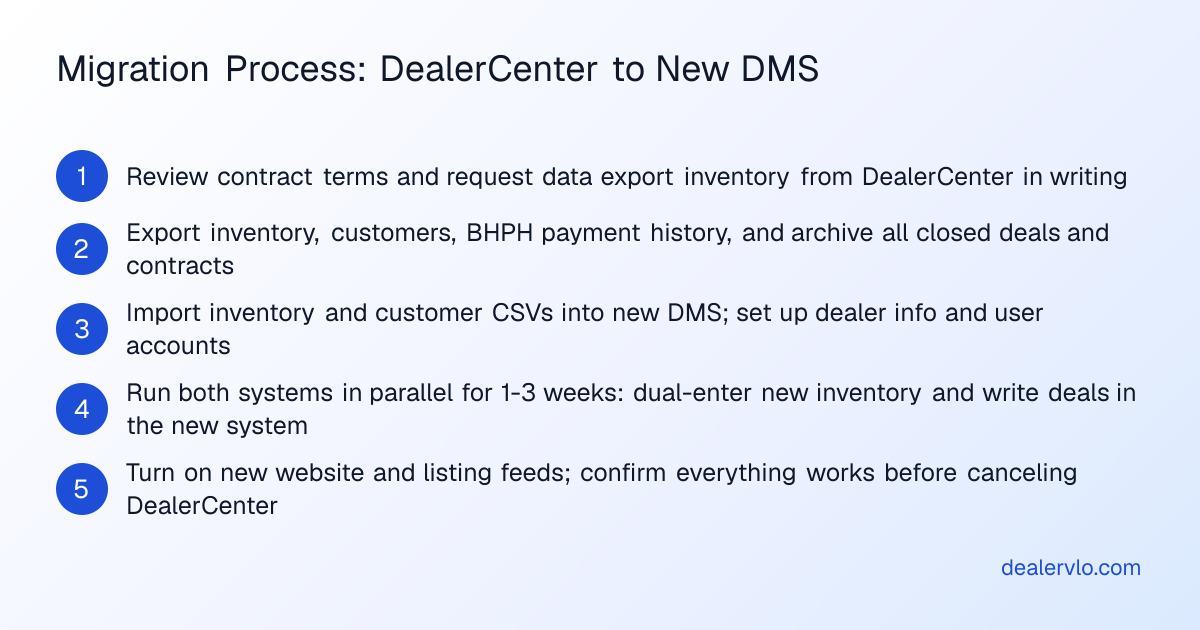
The good news: inventory and customer records move cleanly. The harder truth: past deals, signed contracts, and buy-here-pay-here loan histories don't port into most systems. You need a plan that keeps historical data accessible while you cut over to the new system for everything going forward.
Legal note: This article covers operational migration steps, not contract interpretation. Cancellation notice periods, early-termination fees, and data-retention policies vary by agreement. Review your DealerCenter contract and confirm all terms in writing before you begin.
14-day free trial, then $29/mo · Cancel anytime
Check your contract terms first
The terms in your signed agreement control — and you need to know them before you plan a migration date.
Pull your DealerCenter contract or contact DealerCenter directly, in writing, and get clear answers:
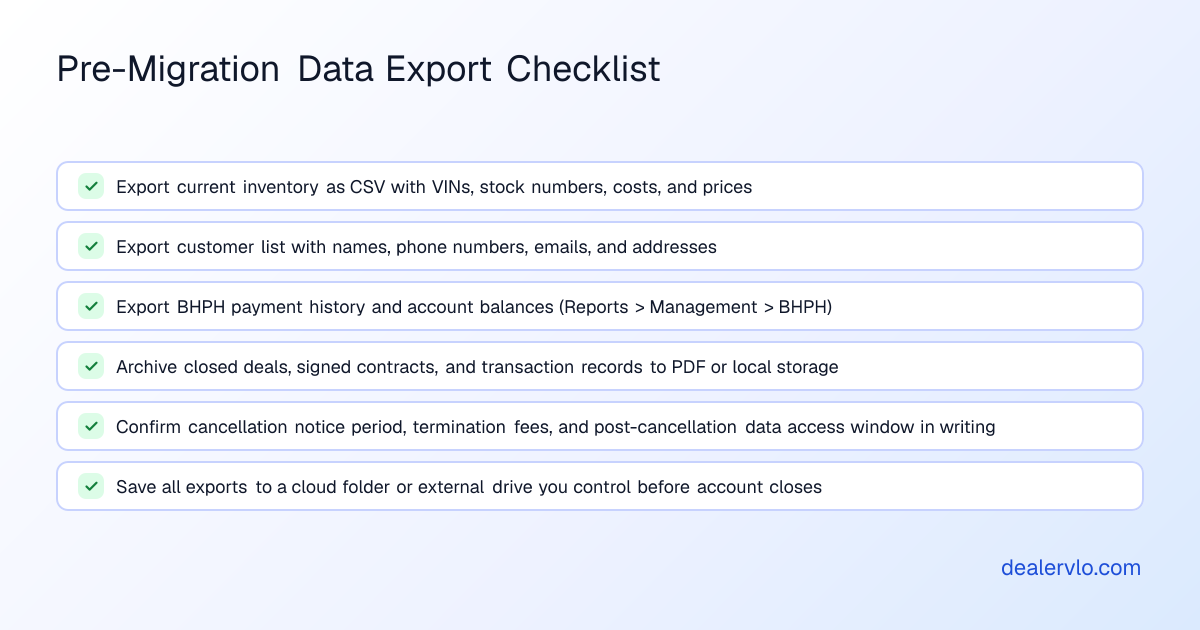
- When does your cancellation take effect? DealerCenter's published general terms say you can cancel by written notice, effective at the end of your current term. Check your signed agreement for anything that adds to that.
- Are there early-termination fees? If you're inside a term commitment, confirm whether you owe anything.
- How long can you get your data after cancellation? The same terms give you 30 days after termination to retrieve your data, provided your account is paid in full. Confirm that window for your account.
- What records can you export, and in what formats?
Get it in an email or PDF. A phone conversation isn't enough.
What you can export from DealerCenter
Inventory: DealerCenter's support documentation mentions the ability to export and import listings. Generate a sample export to see what's included — at minimum, expect VINs, stock numbers, year/make/model, mileage, asking price, and purchase cost.
BHPH payment history: DealerCenter lets you export payment history as a CSV file. There's also a dedicated "Export BHPH Account" report under Reports > Management > BHPH. This is critical if you're running buy-here-pay-here — you'll need that history for your own records, tax filings, and any future collections or charge-off documentation.
Customer data: Contact DealerCenter support and ask for a CSV export of your customer list with names, phone numbers, emails, addresses, and any notes.
Deals and signed contracts: DealerCenter does not advertise a bulk deal export. You may be able to export a transaction list or print individual deal jackets to PDF, but expect this to be manual.
14-day free trial, then $29/mo · Cancel anytime
What moves into DealerVLO — and what doesn't
DealerVLO imports two record types by CSV: inventory and customer contacts. Each file can hold up to 500 rows, and DealerVLO recognizes common column names automatically. Duplicate VINs and emails are skipped.
Inventory: Export your inventory from DealerCenter as a CSV. Confirm it includes VIN, stock number, year, make, model, mileage, purchase cost, and asking price. The import reads those values from your file's columns; it doesn't decode VINs, so year, make, and model need to be in the export. Use Add many cars at once on the Inventory page, which also maps a cost column. Once imported, each car appears in your inventory list with photos and recon costs ready to add, and all-in cost and margin calculated automatically. Days on the lot count from the import date, not the date you bought the car.
Customers: Upload your customer CSV and contacts are in the system, ready to search and pull up when a repeat buyer calls.
What does NOT import: DealerVLO does not import past deals, signed contracts, deal documents, or buy-here-pay-here loan balances and payment histories. If you have active BHPH accounts in DealerCenter, export the data to a spreadsheet or print each account to PDF before you lose access. Archive those records outside DealerCenter — you'll need them for audits, warranty claims, tax filings, and any buyer who calls later with a title question.
Running both systems during the overlap
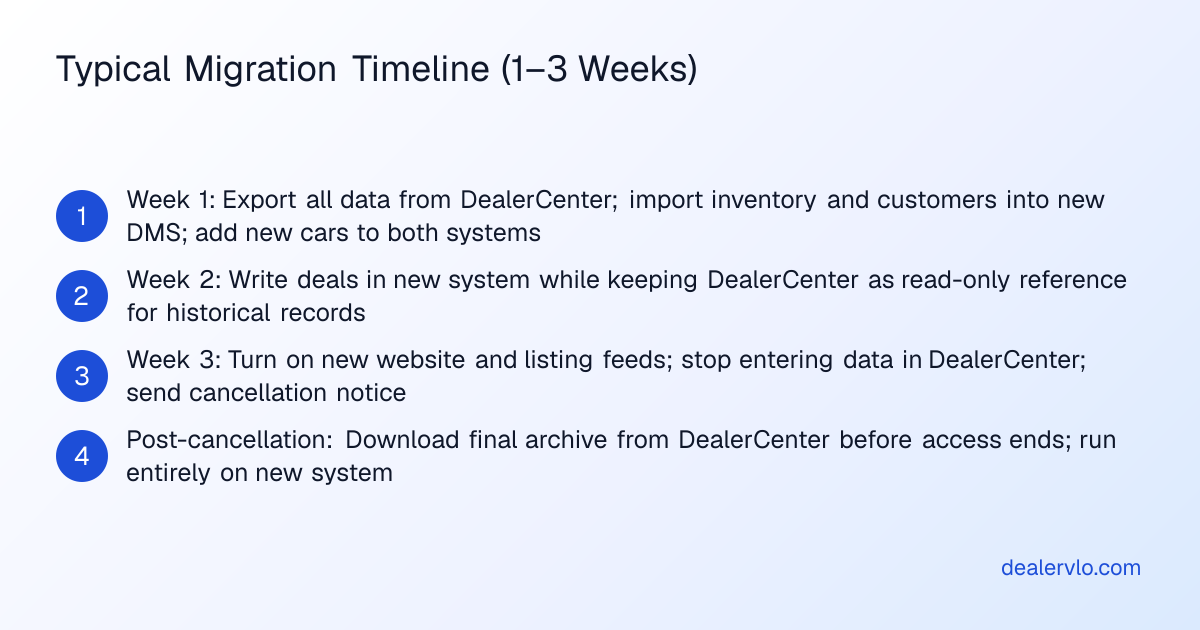
Plan for a brief overlap period — typically one to three weeks — when you're maintaining both DealerCenter and DealerVLO in parallel.
Week one: add new inventory to both systems. When you buy a car, enter it in DealerCenter and also add it to DealerVLO. This builds confidence without risking a live deal. You'll see how VIN decode fills in a car you add by hand, how photos upload, and how the pricing suggestion compares to what you'd price it at on your own.
Week two: write deals in DealerVLO. When you sell a car, build the deal in DealerVLO. The deal jacket computes the trade equity, totals, payment, and front- and back-end gross as you enter it. DealerVLO fills the FTC Buyers Guide and your state's title paperwork from the deal data — no re-typing. You'll still have DealerCenter open to reference old deals or pull a BHPH payment history, but new transactions happen in the new system.
DealerVLO fills title paperwork for all 50 states: the state's own form, or a worksheet where the state uses a portal or a controlled paper form. That worksheet has every field and value from the deal, so you can transcribe it accurately or submit it through the state's system.
Week three: turn on your new website and listing feeds. Once your inventory is in DealerVLO and you've written at least one deal, turn on your DealerVLO website. Set up your listing feeds to CarGurus, Cars.com, Autotrader, and Carfax.com; once you enroll with each site, DealerVLO sends your inventory automatically (you still pay each site's fees). For Facebook Marketplace, DealerVLO gives you a one-click download kit for each car because Meta ended automated feeds for dealers in 2021.
By the end of week three, DealerCenter is a read-only archive. You're running on DealerVLO.
The cut-over checklist
-
Export everything from DealerCenter before you cancel. Inventory, customers, BHPH payment histories, and any closed deals or signed contracts you'll need for taxes, audits, or title work.
-
Import inventory and customers into DealerVLO. Upload your CSVs. DealerVLO reads year, make, and model from your file and skips duplicate VINs and emails. Spot-check a few entries to confirm costs, prices, and contact details carried over correctly.
-
Set up your state forms and user accounts. Add your dealership name, address, dealer license number, and owner details in DealerVLO's settings. Invite your sales team — DealerVLO is $29 a month flat for unlimited users.
-
Write your first deal in DealerVLO. Walk through the deal jacket, add the vehicle, the buyer, any trade-in, financing terms, and F&I products. DealerVLO calculates the totals and gross, fills your state's title paperwork (or a worksheet of the deal's values, where the state uses a portal or a controlled paper form), and generates the Buyers Guide.
-
Turn on your DealerVLO website. Go to Settings → Dealership & website and check "Publish a public website for this dealership." Your inventory appears automatically.
-
Enroll with CarGurus, Cars.com, Autotrader, and Carfax.com if you haven't already. Once each site has you enrolled, DealerVLO sends your inventory to it automatically.
-
Cancel DealerCenter once you've written a few deals in DealerVLO. Follow the cancellation process in your contract — written notice, to the right email address, with the required lead time.
-
Download one final archive from DealerCenter before your access ends.
14-day free trial, then $29/mo · Cancel anytime
What the move costs in time
A rough planning budget for a small lot with a few dozen cars and a few hundred customer records — your numbers will vary:
- Contract review and export requests: 1–2 hours.
- Export and archive: 2–4 hours. If you have a large BHPH portfolio or years of closed deals, budget more time.
- Import into DealerVLO and spot-check the results: under an hour.
- Setup and first deal: 1–2 hours.
Total hands-on time: roughly a working day, spread over one to three weeks.
Your first week running only on DealerVLO
Day one: Add new inventory. Upload photos, let the AI photo enhance tool put each shot on a clean backdrop if you want, and enter recon costs line by line — DealerVLO rolls them into the car's all-in cost and margin automatically.
Day two: Review your dashboard. DealerVLO shows how many cars are available, new leads, active deals, cars sold this month, and how many units are aged 60+ days. Open the inventory aging report and decide whether any cars need a price cut or a wholesale buyer.
Day three: Write a deal. Open a new deal jacket, select the car, add the buyer's name and address, enter any trade-in and financing terms, and the system calculates the totals and gross. DealerVLO fills the Buyers Guide and your state's title paperwork.
Day four: Process a BHPH payment. DealerVLO's payment tracker shows every active account, the balance, next due date, and payment history. When a customer pays, you log the payment and the balance updates.
Day five: Check your reports. The sales report shows front- and back-end gross per deal, and a salesperson leaderboard if you have a team. The inventory aging report buckets your stock into 0–30, 31–60, 61–90, and 90+ days.
The data-security angle
DealerVLO's online credit applications are encrypted, only owners, admins, and finance managers can open them, every view is logged, and they're deleted automatically after 25 months. The application doesn't collect Social Security numbers online.
Frequently asked questions
How do I export my inventory and customer list from DealerCenter?
DealerCenter's support documentation mentions the ability to export inventory listings, and you can export BHPH payment history as a CSV under Reports > Management > BHPH. For customer records, contact DealerCenter support and request a bulk CSV export.
Can I import my past deals and BHPH loan balances into DealerVLO?
No. DealerVLO imports inventory and customer contacts by CSV, but it does not import past deal records, signed contracts, or BHPH loan balances. Export those from DealerCenter before you cancel and keep that archive in a spreadsheet or PDF folder.
How much notice does DealerCenter require to cancel?
DealerCenter's published general terms say you can cancel by written notice, and the cancellation takes effect at the end of your current term. Your signed agreement may add terms, so check it and confirm the effective date in writing.
How long does the migration take if I'm switching to DealerVLO?
Plan for a one-to-three-week overlap period. The hands-on work — exporting data, importing into DealerVLO, setting up your dealer info, and writing your first deal — is roughly a working day in total, spread over that period. A large BHPH portfolio or years of closed deals add export time.
What happens to my BHPH payment history when I switch systems?
Your BHPH payment history stays in DealerCenter's records unless you export it before your account closes. Download that data under Reports > Management > BHPH and save it in a spreadsheet or cloud folder — you'll need it for tax filings, collections, and charge-offs.
Bottom line
Switching from DealerCenter takes planning, but it's not a month-long project. Export your data early, confirm your contract terms in writing, and plan for a short overlap period. Inventory and customers move cleanly by CSV; past deals and BHPH loan histories don't, so archive those records before you cancel.
DealerVLO is $29 a month, flat — no per-user fees, no module add-ons, and a 14-day free trial that includes everything. Start your trial at /signup, upload your inventory CSV, and write a test deal.
14-day free trial, then $29/mo · Cancel anytime
Paste a VIN, the buyer, and the price — see the title & registration form filled in for 50 states, free, no signup.
Open the State Form Auto-Fill