# Switching from AutoRaptor: How to Move Your Inventory, Customers and Deals Without Losing a Week
> A practical migration playbook for independent dealers leaving AutoRaptor: what to export, contract terms, what moves to DealerVLO, and a cut-over checklist.
- Source: https://www.dealervlo.com/blog/switching-from-autoraptor
- Published: 2026-10-04
- Updated: 2026-10-04
- Author: Chris Abouraad
- Tags: dealer software, migration, AutoRaptor, inventory management, CRM
---
If you're switching from AutoRaptor, the biggest headache isn't learning new software—it's making sure nothing falls through the cracks during the move. This guide walks through what you can export, what moves into DealerVLO, the contract terms to check, and a realistic timeline.
Move your inventory and customers to DealerVLO and start running deals in a weekend—start your 14-day free trial
## Before you export: check your AutoRaptor contract terms
According to AutoRaptor's [terms of service](https://www.autoraptor.com/terms-of-service), you must provide written notice at least sixty days prior to your contract renewal date.
AutoRaptor's FAQ states they'll retain your data for "a limited period," after which it's permanently deleted—but that period isn't defined.
**Action step:** Pull your original AutoRaptor agreement and confirm whether you're on month-to-month or annual, what your renewal date is, and what notice period applies. Get the exact data retention period and any fees for data exports in writing before you start.
## What you can export from AutoRaptor (and what you can't)
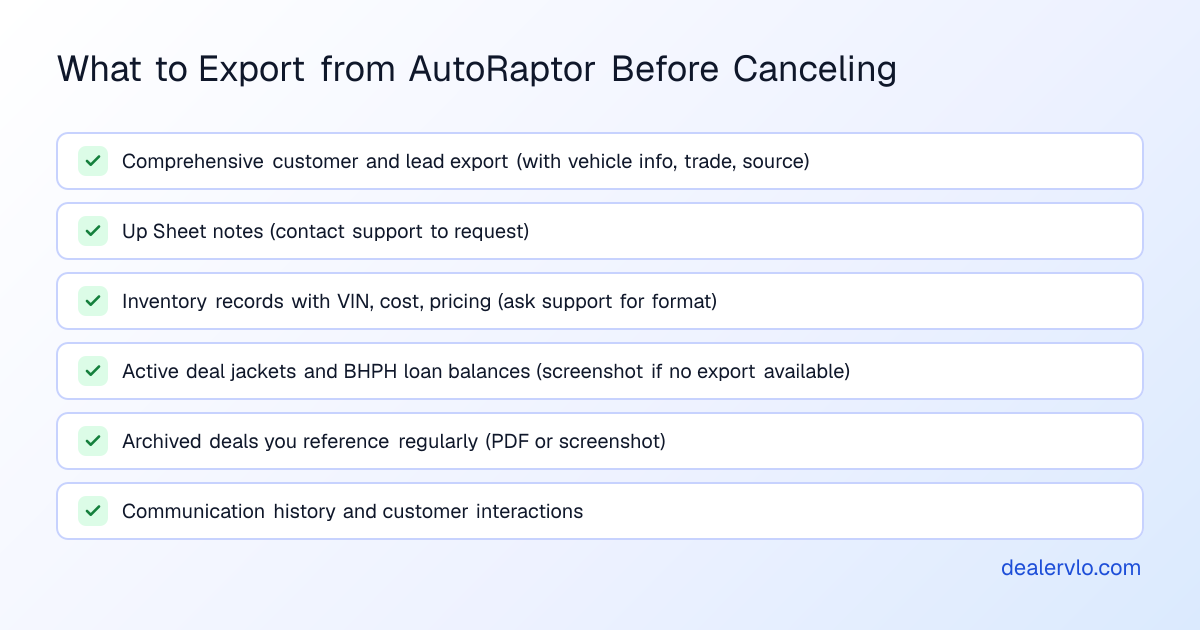
AutoRaptor allows you to export customer data, lead information, and communication history in CSV or Excel format if you have admin permissions. There are two main export types:
- **Mailing List export:** basic names and contact information.
- **Comprehensive export:** includes vehicle information, trade details, sales rep, source, and more.
If you want Up Sheet notes included, contact AutoRaptor support directly—notes aren't part of the standard export options.
### What AutoRaptor does NOT document for export
AutoRaptor's public help documentation does not specify whether inventory records, deal structures, desking data, F&I product details, or BHPH loan balances and payment histories can be exported at all.
**What to do before you cancel:**
1. Export a Comprehensive customer/lead file from AutoRaptor.
2. Contact AutoRaptor support to request an export that includes Up Sheet notes, inventory records, deal jackets, and BHPH loan data.
3. If those records can't be exported, download or screenshot every active deal and every BHPH account with an outstanding balance.
## What moves into DealerVLO (and what doesn't)
DealerVLO accepts CSV imports for inventory and customer contacts. There are two import paths:
- **Inventory import** (from the Inventory page): up to 1,000 rows per file; every row needs a valid 17-character VIN. DealerVLO reads stock number, year, make, model, trim, body, color, mileage, transmission, drivetrain, fuel type, asking price, internet price, cost, and status. **Use this import if your export includes cost.**
- **Settings → Import data**: up to 500 rows per file. Inventory rows need VIN, year, make, and model; customer rows need a first or last name. This import does NOT carry cost.
DealerVLO's CSV import does not decode VINs—year, make, model, and the rest come from the columns in your file, so your AutoRaptor export must include those fields.
An imported car counts days in inventory from the import date. There's no field to set a car's original acquired date, so the clock resets on import.
### What does NOT import into DealerVLO
- **Past deals, deal documents, or deal jackets.** DealerVLO imports inventory and customer contacts only.
- **BHPH loan balances and payment history.** DealerVLO's buy-here-pay-here payment tracking covers notes on deals you write in DealerVLO; it doesn't import outstanding balances or past payment records. Keep servicing the loans you carry over from your exported records.
- **Photos.** Photos are uploaded after the cars are in DealerVLO, not during the CSV import.
Once your inventory and customers are in DealerVLO, every car shows its days in inventory, all-in cost (when you track recon line by line), and margin. DealerVLO flags cars aged 60+ days and gives you an AI price suggestion based on live comparable listings.
Import your inventory and customers in one afternoon—try DealerVLO free for 14 days
## Your migration timeline: the four-stage move
Most independent dealers can switch from AutoRaptor to DealerVLO in a long weekend if they plan it right. Here's the realistic timeline:
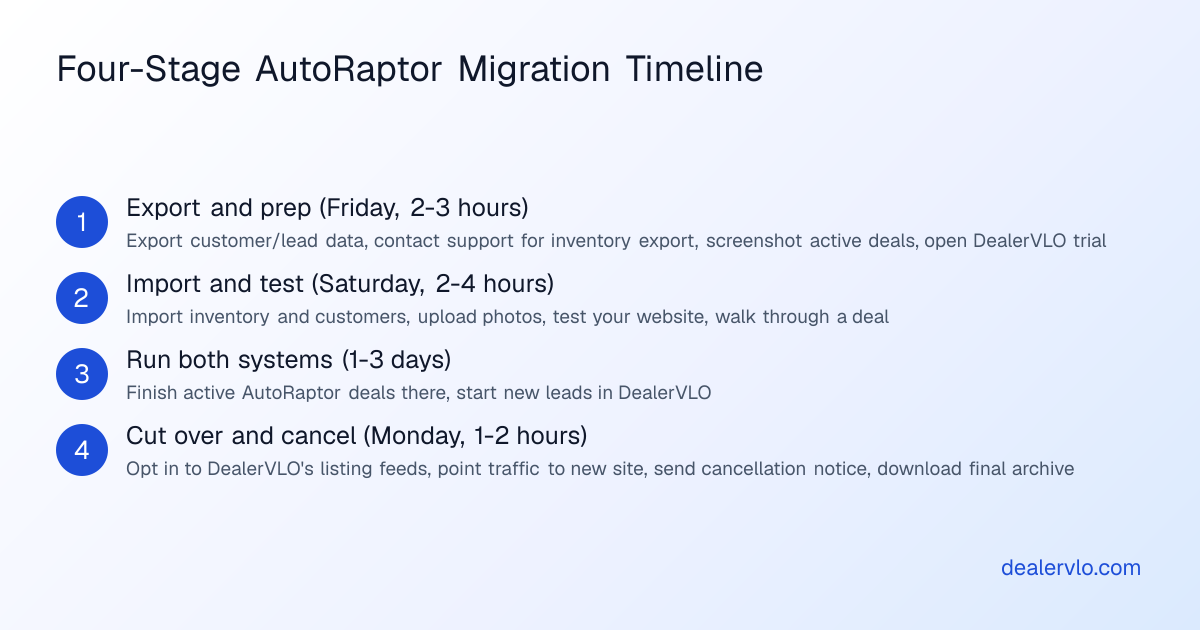
### Stage 1: Export and prep (Friday afternoon, 2-3 hours)
1. **Export your customer and lead data** from AutoRaptor (the Comprehensive export). Save the .csv file.
2. **Contact AutoRaptor support** to request an export with Up Sheet notes, and ask about inventory, deal, and BHPH exports.
3. **If AutoRaptor can't export inventory:** manually compile a spreadsheet with VIN, stock number, year, make, model, trim, mileage, asking price, internet price, cost, and status for every car on your lot.
4. **Screenshot or PDF every active deal and BHPH account.**
5. **Open a DealerVLO trial** (14 days, runs in a browser). Set your dealership name, address, and doc fee in Settings.
### Stage 2: Import and test (Saturday morning, 2-4 hours)
1. **Import your inventory CSV** into DealerVLO from the Inventory page (or Settings → Import data if you don't have cost in the file).
2. **Import your customer CSV** from Settings → Import data. DealerVLO skips duplicate emails.
3. **Upload photos** for each car from the Inventory page. Drag to reorder; the first photo is the primary.
4. **Check a handful of cars on your website.** Inventory posts to it as soon as you add it.
5. **Walk through one test deal.** Pick a car, open a new deal, fill in a buyer, a trade, and a down payment. Auto-fill a state title form and a federal Buyers Guide to confirm the forms pull correctly.
### Stage 3: Run both systems (1-3 days)
For active deals and hot leads, keep AutoRaptor running while you finish them. For new leads and fresh inventory, start using DealerVLO.
- **Active deals in AutoRaptor:** finish them there, then mark the car sold in DealerVLO so it comes off your website and feeds.
- **New inventory:** add it in DealerVLO so it posts to your website and feeds immediately.
### Stage 4: Cut over and cancel (Monday, 1-2 hours)
Once your active AutoRaptor deals are closed:
1. **Turn on your listing feeds.** Under Settings → Syndication feeds, enter your Dealer ID for CarGurus, Cars.com, and Autotrader and opt in, then ask each site to stop the AutoRaptor feed.
2. **Point your website traffic** to your DealerVLO site, or keep your existing domain and redirect it.
3. **Forward the email address AutoRaptor sends leads to** to the address DealerVLO monitors, or update your lead sources to send directly to DealerVLO.
4. Request written confirmation of your final billing date and the data retention period.
5. **Download one final export** of everything AutoRaptor will give you, and save it as an archive.
## The first week on DealerVLO: what changes and what doesn't
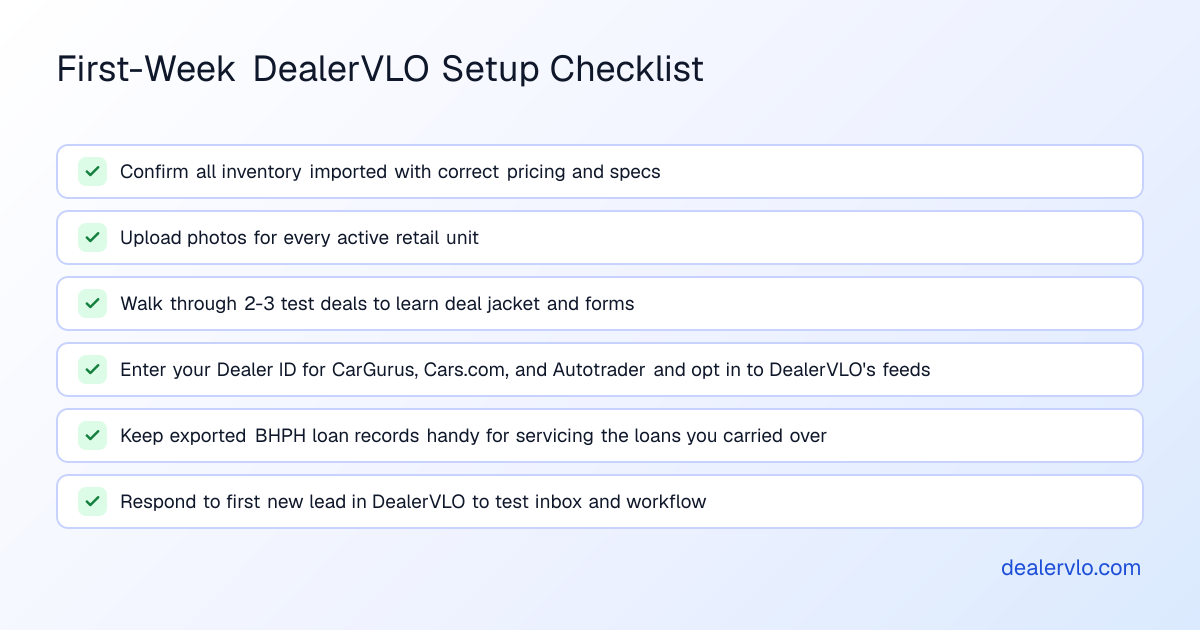
The hardest part of switching systems isn't the technical move—it's the muscle memory. DealerVLO is simpler, but you'll spend the first few days learning where things live.
**What changes:**
- **Paperwork fills from the deal.** DealerVLO fills federal forms and your state's title paperwork from the deal (a worksheet of the deal's values where your state uses a portal), so you're not re-typing the buyer's name and VIN across every document.
- **Price and photo changes flow out on their own.** Change a car's price or upload a new photo, and your website updates right away; the listing sites pick it up with the next daily feed.
- **You'll notice what's aged.** Every car shows its days on the lot, and DealerVLO flags anything 60+ days.
**What stays the same:**
- **You still chase leads the same way.** DealerVLO's lead inbox records source and history, but it doesn't text or call for you.
- **You still price cars based on the market.** DealerVLO gives you an AI price suggestion from live comps, but you make the call.
The biggest adjustment depends on how you used AutoRaptor. It's a CRM that integrates with DMS platforms like Frazer, DealerCenter, and Dealertrack, while DealerVLO is the DMS itself: inventory, deals, paperwork, and leads live in one system. If you plan to keep a separate DMS alongside DealerVLO, know that DealerVLO doesn't sync with it.
Write your next deal in DealerVLO—forms filled, gross calculated, e-signatures done—start your free trial
## When AutoRaptor is the better fit
AutoRaptor is a CRM [built for independent dealers](https://www.autoraptor.com/crm), including buy-here-pay-here and multi-location lots, with [80+ integrations](https://www.autoraptor.com/integrations) across lead sources, DMS platforms, credit, vehicle history, and communication tools. If your team works leads hard through AutoRaptor's CRM and texting, or you rely on those integrations, switching to DealerVLO will feel like less: DealerVLO's lead inbox replies by email, and it doesn't text or call customers.
Most independent dealers leaving AutoRaptor do so because they don't use the majority of those integrations, or they want one flat price with unlimited users: AutoRaptor's [pricing page](https://www.autoraptor.com/automotive-crm-pricing) tiers its plans by how many users you have.
## What switching actually costs in time (and a few ways to speed it up)
Here's the honest breakdown of where the hours go:
- **Exporting from AutoRaptor:** 1-2 hours.
- **Cleaning and prepping your CSV files:** 1-2 hours if your AutoRaptor export is missing columns or has formatting issues.
- **Importing into DealerVLO:** 15-30 minutes.
- **Uploading photos:** 1-3 hours depending on how many cars you have.
Total: 6-12 hours spread across a long weekend, with most of the heavy lifting on day one.
**Ways to speed it up:**
- **Start the export process early.** If AutoRaptor support needs to generate your notes export, ask a week ahead.
- **Don't upload photos for sold or wholesale cars.** Only upload images for units you're actively retailing.
## Frequently asked questions
### Can I export my inventory from AutoRaptor before I cancel?
AutoRaptor's public help documentation does not specify whether inventory records can be exported separately or in what format. Contact AutoRaptor support directly and ask whether inventory can be exported in CSV format with VIN, stock number, year, make, model, mileage, cost, and asking price. If they can't provide it, you'll need to manually compile a spreadsheet before you cancel.
### What happens to my AutoRaptor data after I cancel?
AutoRaptor states that they retain your data for a "limited period" after cancellation, after which it's permanently deleted. They do not publicly disclose how long that period is. Export everything you might need before you cancel and save archived copies.
### Does DealerVLO import past deals or BHPH payment history from AutoRaptor?
No. DealerVLO imports inventory and customer contacts only. Its buy-here-pay-here payment tracking covers notes on deals you write in DealerVLO, so keep servicing the loans you carry over from your exported AutoRaptor records.
### How long does it take to switch from AutoRaptor to DealerVLO?
Most independent dealers can complete the move in a long weekend—about 6 to 12 hours of work total. The bulk of the time goes into exporting and prepping your data, uploading photos, and walking through a few test deals.
### Will my listing feeds go down when I switch from AutoRaptor to DealerVLO?
Only if you don't plan the cutover. Once you're enrolled with CarGurus, Cars.com, and Autotrader, enter your Dealer ID for each under Settings → Syndication feeds and opt in; DealerVLO sends the three sites one combined feed once a day. Do that before you cancel AutoRaptor, ask each site to stop the old feed, and check that your cars show up.
### Can I run AutoRaptor and DealerVLO at the same time during the transition?
Yes, and most dealers do for a day or two. Keep AutoRaptor running for active deals while you finish them, and start using DealerVLO for new leads and fresh inventory. Once your AutoRaptor deals are closed, cut over completely and cancel AutoRaptor.
## Bottom line
Switching from AutoRaptor to DealerVLO is a weekend project, not a month-long migration. Export your customers and leads, get inventory and BHPH data out of AutoRaptor however you can, import the CSVs into DealerVLO, upload photos, and walk through a test deal. Run both systems for a day or two while you close out active deals, then cut over and cancel. Most dealers are fully live in three to four days.
Run your next deal in DealerVLO—forms filled, gross calculated—start your 14-day free trial
---
## FAQ
### Can I export my inventory from AutoRaptor before I cancel?
AutoRaptor's public help documentation does not specify whether inventory records can be exported separately or in what format. Contact AutoRaptor support directly and ask whether inventory can be exported in CSV format with VIN, stock number, year, make, model, mileage, cost, and asking price. If they can't provide it, you'll need to manually compile a spreadsheet before you cancel.
### What happens to my AutoRaptor data after I cancel?
AutoRaptor states that they retain your data for a "limited period" after cancellation, after which it's permanently deleted. They do not publicly disclose how long that period is. Export everything you might need before you cancel and save archived copies.
### Does DealerVLO import past deals or BHPH payment history from AutoRaptor?
No. DealerVLO imports inventory and customer contacts only. Its buy-here-pay-here payment tracking covers notes on deals you write in DealerVLO, so keep servicing the loans you carry over from your exported AutoRaptor records.
### How long does it take to switch from AutoRaptor to DealerVLO?
Most independent dealers can complete the move in a long weekend—about 6 to 12 hours of work total. The bulk of the time goes into exporting and prepping your data, uploading photos, and walking through a few test deals.
### Will my listing feeds go down when I switch from AutoRaptor to DealerVLO?
Only if you don't plan the cutover. Once you're enrolled with CarGurus, Cars.com, and Autotrader, enter your Dealer ID for each under Settings → Syndication feeds and opt in; DealerVLO sends the three sites one combined feed once a day. Do that before you cancel AutoRaptor, ask each site to stop the old feed, and check that your cars show up.
### Can I run AutoRaptor and DealerVLO at the same time during the transition?
Yes, and most dealers do for a day or two. Keep AutoRaptor running for active deals while you finish them, and start using DealerVLO for new leads and fresh inventory. Once your AutoRaptor deals are closed, cut over completely and cancel AutoRaptor.